Your tickets in the app
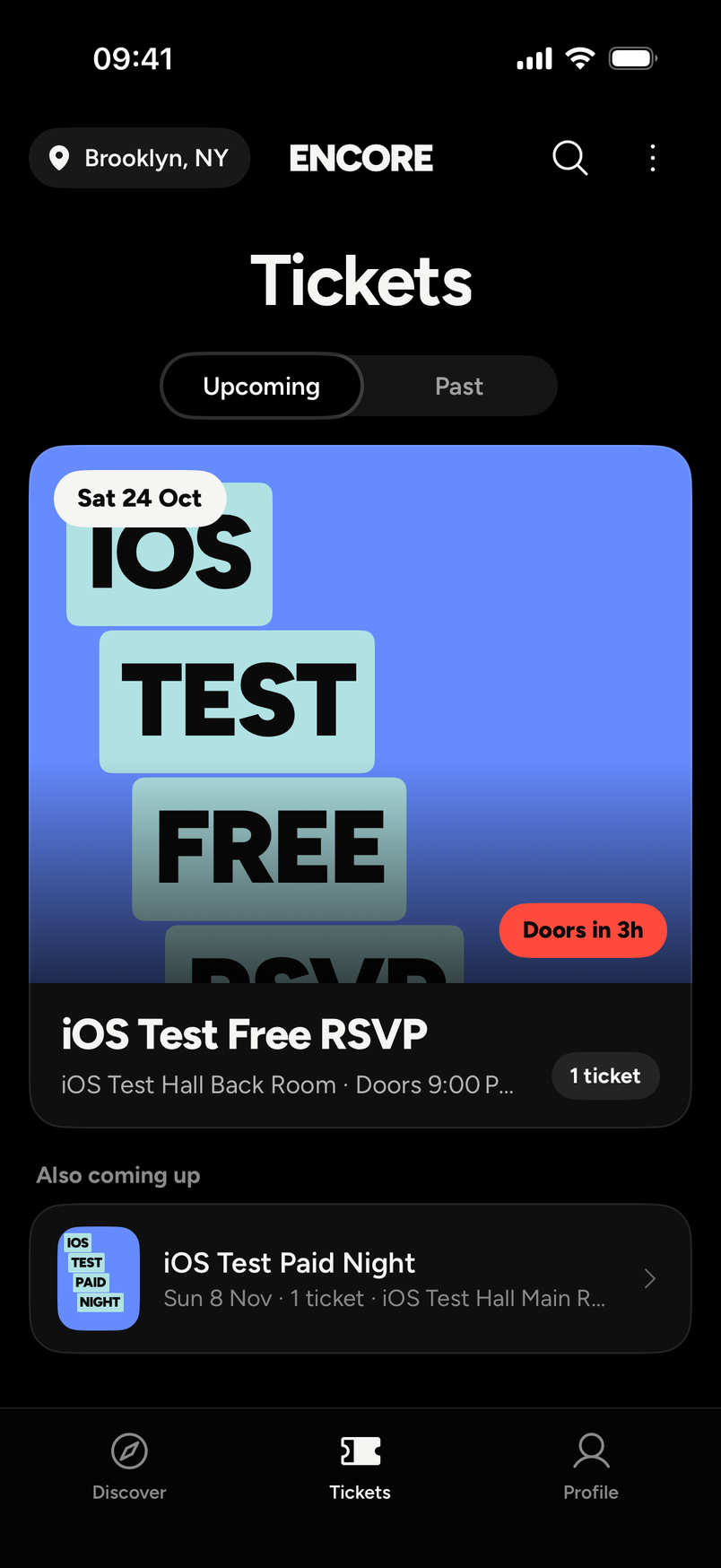
Your tickets are in the Tickets tab, the middle one of the three tabs at the bottom (Discover, Tickets, Profile). Each ticket has the QR code for the door.
What you see
- Upcoming shows events that haven't happened yet. Switch to Past for the ones that have.
- Each event shows its name, the venue and how many tickets you hold, like "1 ticket". When doors are close it says so, for example "Doors in 3h".
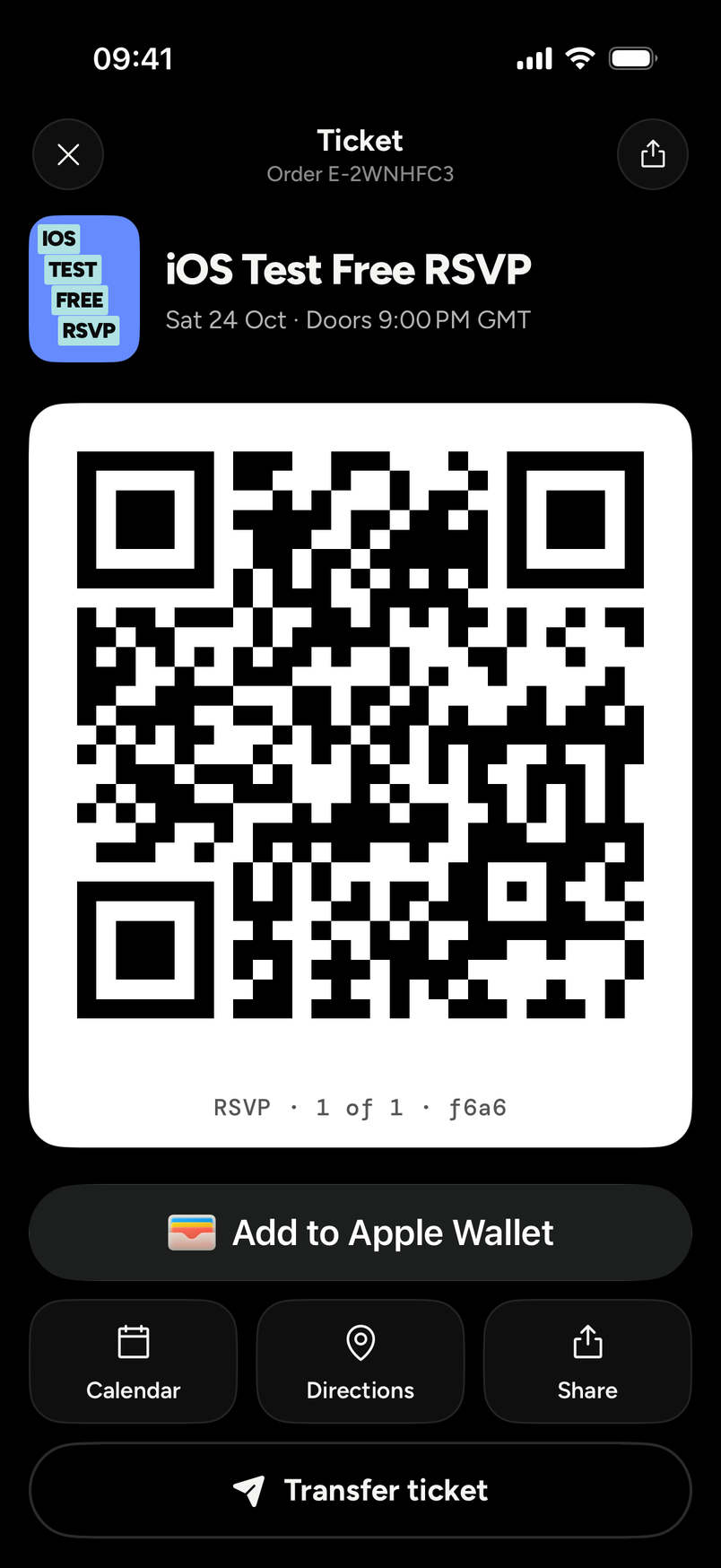
- Tap an event to open the ticket. It shows the event and date, your order reference (it looks like E-2WNHFC3, as in the picture below), and which ticket it is, like "1 of 1" under the QR.
At the door
Open the ticket and show the QR code. Turn your screen brightness up. Each ticket lets in one person, once. If it has already been scanned, the scanner says ALREADY IN, so don't share a screenshot.
If the QR won't scan, see My QR code won't scan.
Apple Wallet
Under the QR there is an Add to Apple Wallet button. Tap it to save the ticket as a pass and show the pass at the door.
The same screen has Calendar and Directions buttons, and Share.
If your phone dies
Your ticket is in your email too. Open the email on a borrowed phone and show its QR code. See My phone died or I can't open the app.
Your ticket email is your receipt. See Get a receipt for my order.