Scan tickets with the app or the web door
Anyone on your team can scan tickets from a phone browser. Nobody has to install an app.
Who can scan: owners, admins and door staff. Add door staff in Settings → Team. For someone who will only work one night, a door pass is quicker.
Start scanning
- On the phone, sign in and go to Door, or open the scanner page directly.
- Tap Open scanner on a phone.
- Pick tonight's event under Night. From 24 hours before the start, this also saves the guest list on the phone, so the door keeps working if the signal drops. Earlier than that the scanner says "The list opens" at a time, and "Scanning works online until then."
- Tap Start camera and allow camera access.
- Point the camera at the QR code on the fan's ticket.
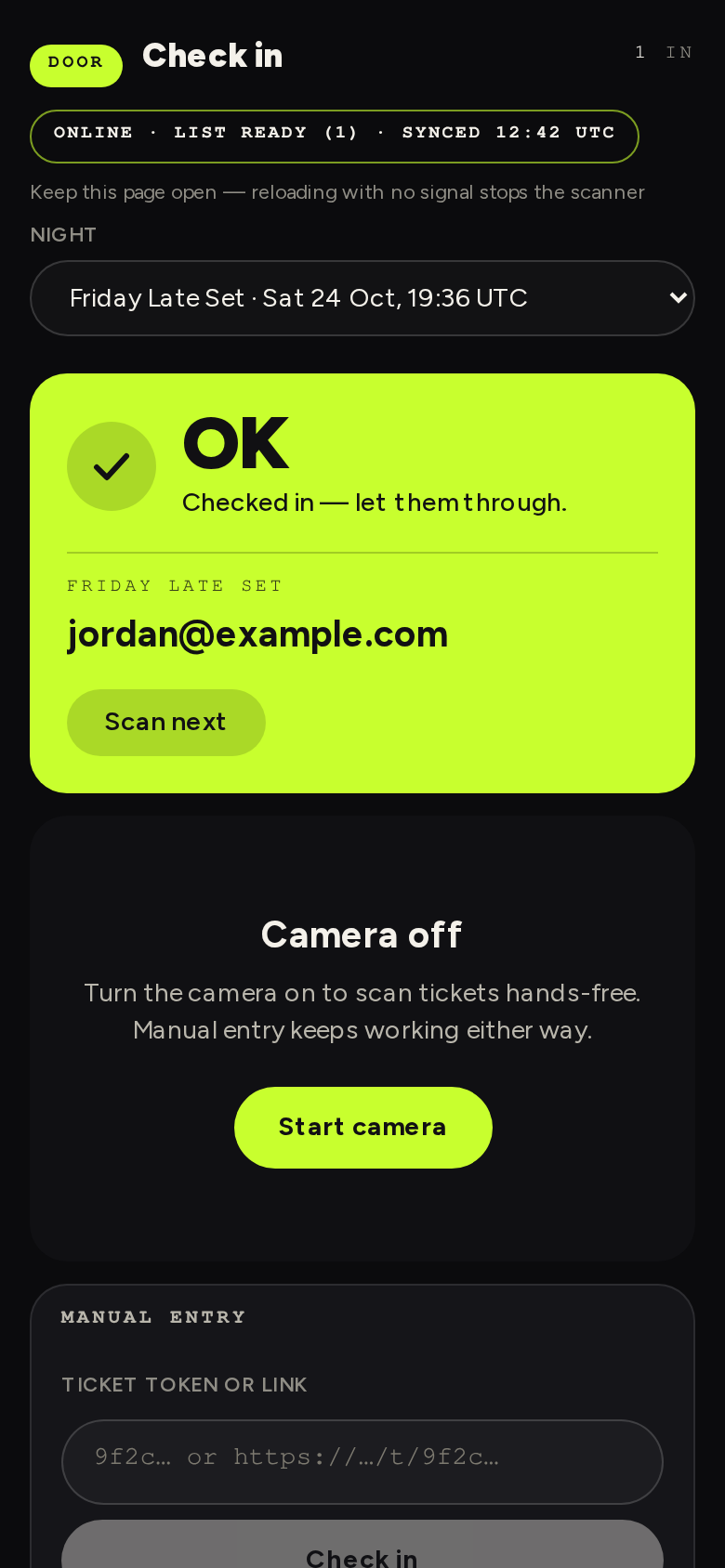
The band at the top changes colour with each scan. Green means let them in. Red or grey means stop. Yellow means the door has a problem, not the ticket. Every result is explained in What each scan result means.
After a result, tap Scan next. A green OK clears by itself.
If the QR won't scan
Tap Type a code instead. The section opens as Manual entry: type the code or the ticket link into Ticket token or link and tap Check in.
Tips for the night
- Turn the screen brightness up on the fan's phone, not yours.
- Use Turn torch on in dark rooms.
- Scan sounds can be muted with Mute scan sounds.
- Keep the scanner page open. Reloading it with no signal stops the scanner.
Watch the door live
Door in your dashboard shows who has come in, as it happens: the count so far, entries per 5 minutes, the latest scans and who scanned them. It shows no money, so it's safe to leave open on a screen at the door.