Scan and check people in with the app
Anyone on your team can scan from the app once they sign in with their own account. Add people to your team first. See How do I add people to my team?
Door passes (the link and PIN for a one-night helper with no account) don't work in the app. A helper with a door pass scans on the website door instead. See Door PIN for one-night staff.
Start scanning
- Sign in and open the Door tab. You can also tap Door on an event's card in the Events tab.
- The Door tab lists nights under Tonight and Upcoming. Tap Open scanner on the night you're working.
- Point the camera at the QR code on the fan's ticket: on their phone: in the app, or on the ticket page their email links to.
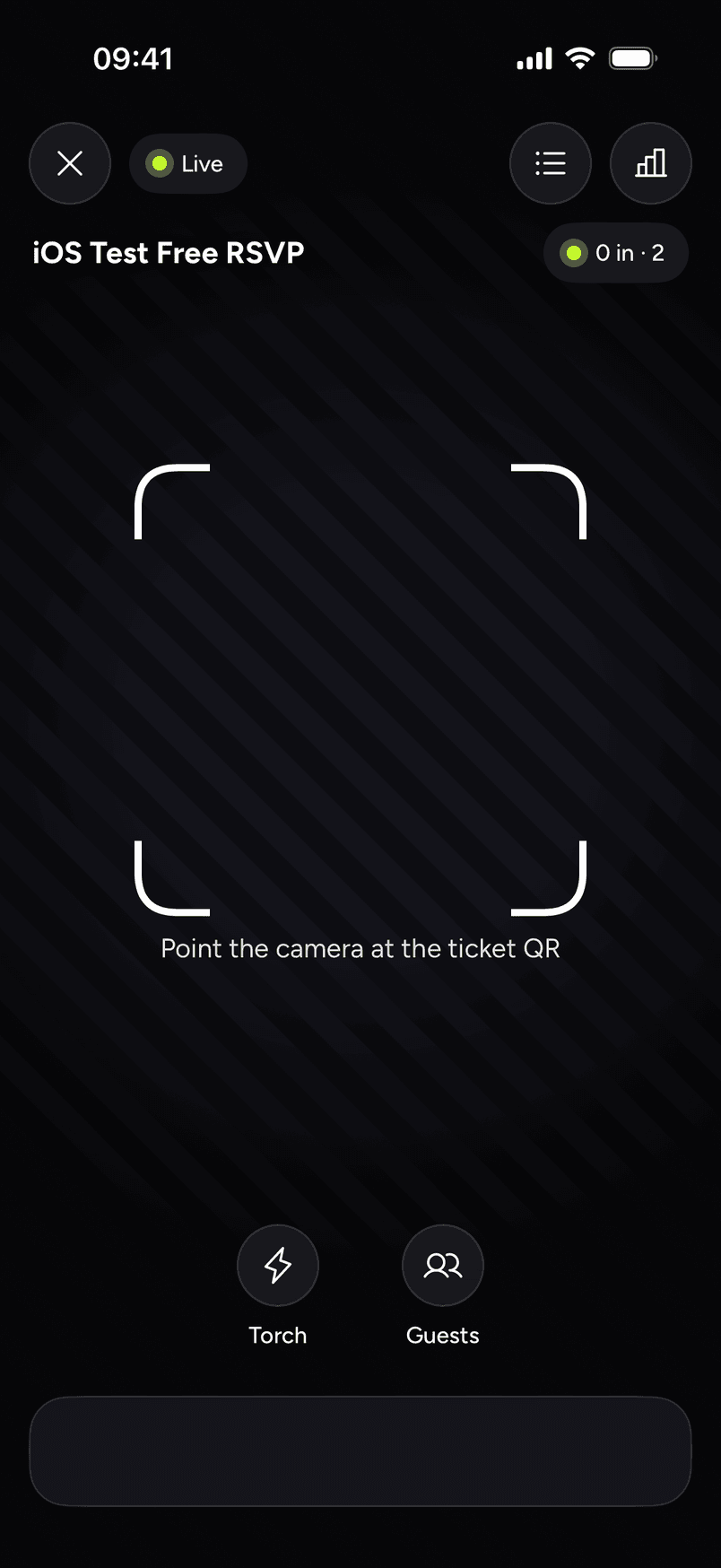
While it waits, the scanner shows Live at the top left, the event's name, a count like "0 in · 2", and the line "Point the camera at the ticket QR". It has a Torch button for the light and a Guests button for the guest list, so you can look someone up.
What the bands mean
The whole screen turns one colour and shows a big word.
| Band | What it means | What to do |
|---|---|---|
| IN | Checked in | Let them in |
| ALREADY IN (red) | Scanned before. Shows when and on which phone | Stop them, and check the ticket is theirs |
| NOT FOUND (red) | No ticket matches this code | Look them up in Guests before turning them away. Ask for the ticket from their email |
| WRONG NIGHT | The ticket is for a different night | Don't let them in |
| REFUNDED | The ticket was refunded | Don't let them in. Send them to the organizer |
| TRANSFERRED | The ticket was given to someone else and replaced | Don't let them in. Ask for the new ticket |
| CHECK AGAIN | The phone couldn't reach us. Not a verdict on the ticket | Scan again. Never turn someone away on this |
| NO ANSWER | The scan was sent and nothing came back. Not a verdict on the ticket | Scan again |
With Extra-large result on, a good scan turns the screen green and shows IN in large letters, with the guest's name, the ticket type and which of the order's tickets it is, like "Late entry · 2 of 2".
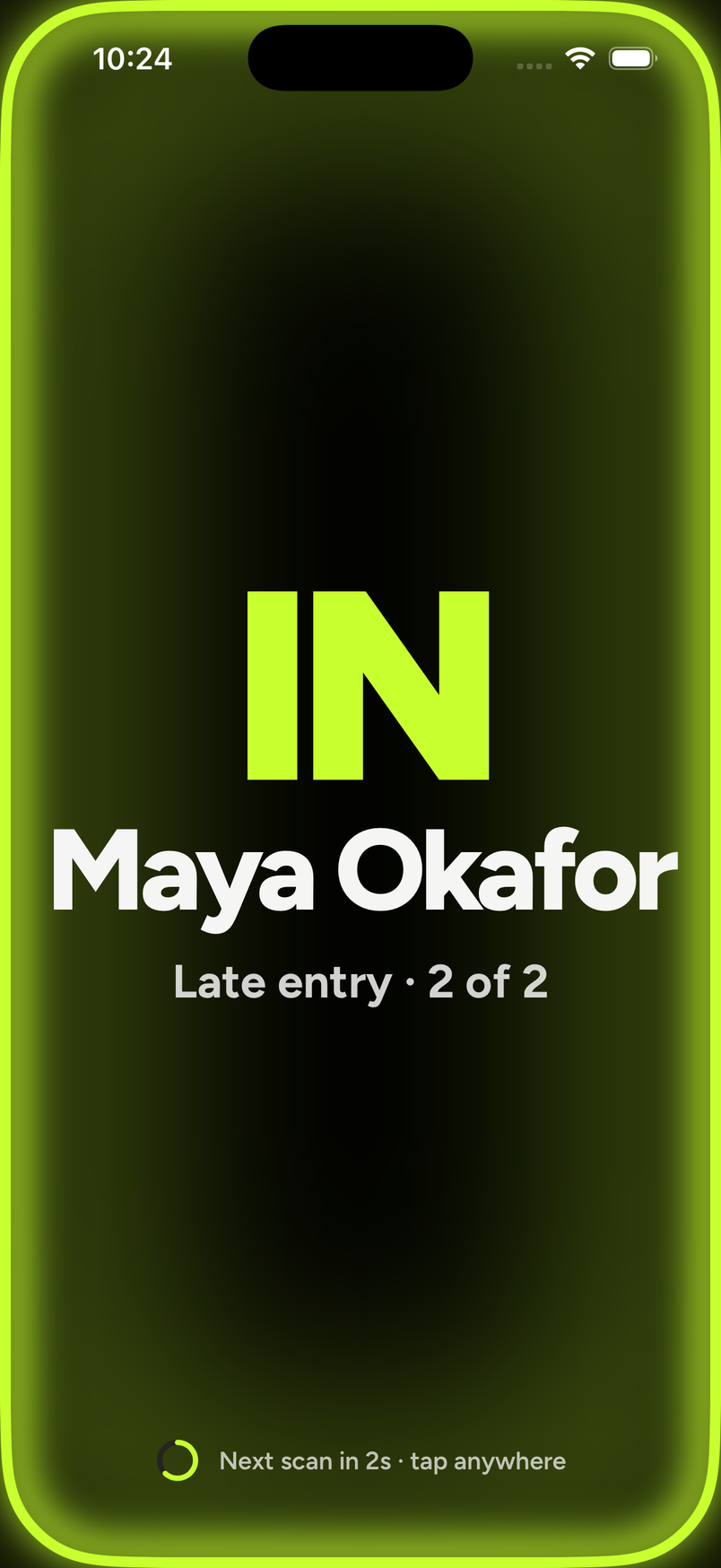
With Next scan by itself on, the line at the bottom reads "Next scan in 2s · tap anywhere". The scanner gets ready for the next person after 2 seconds, or sooner if you tap the screen. If the Undo button is showing, it waits until the 5 seconds for Undo are up.
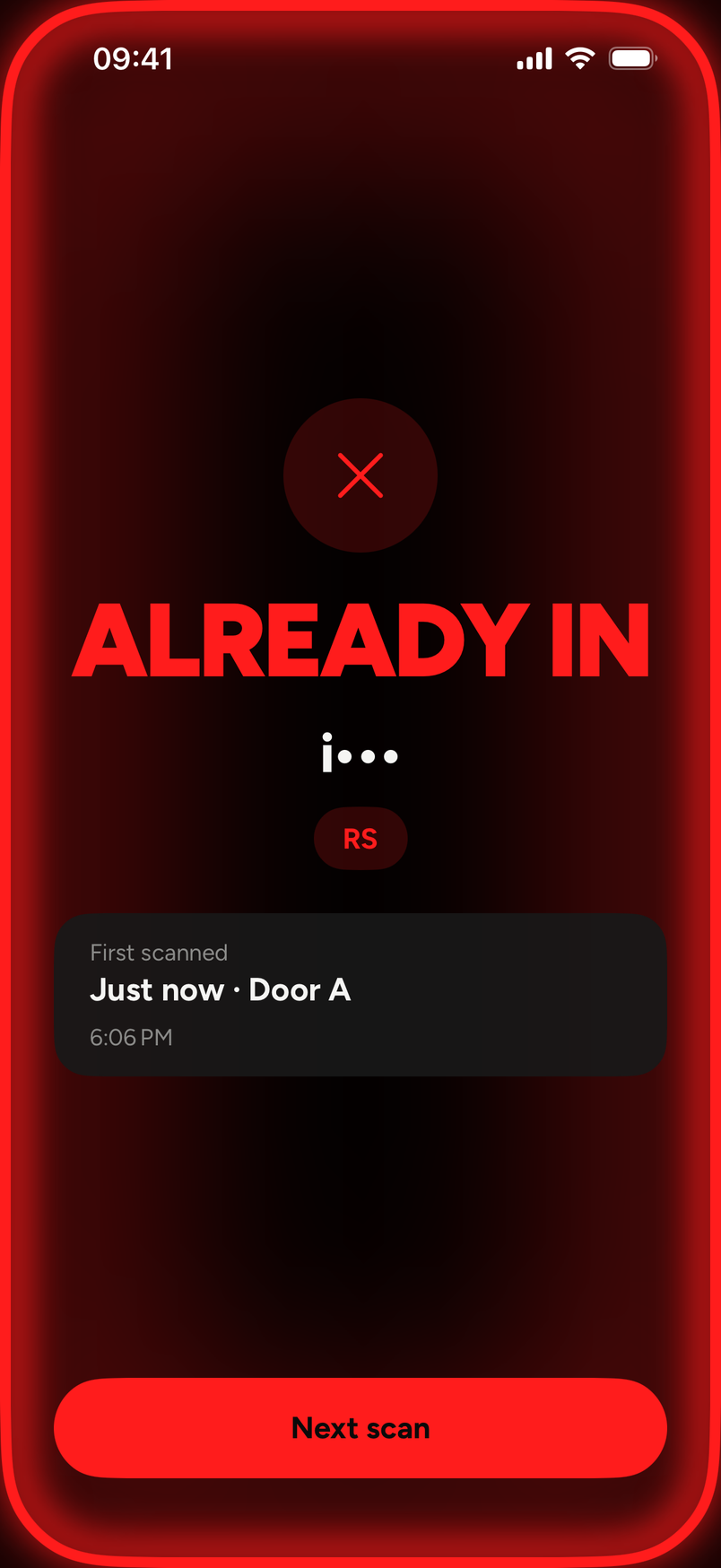
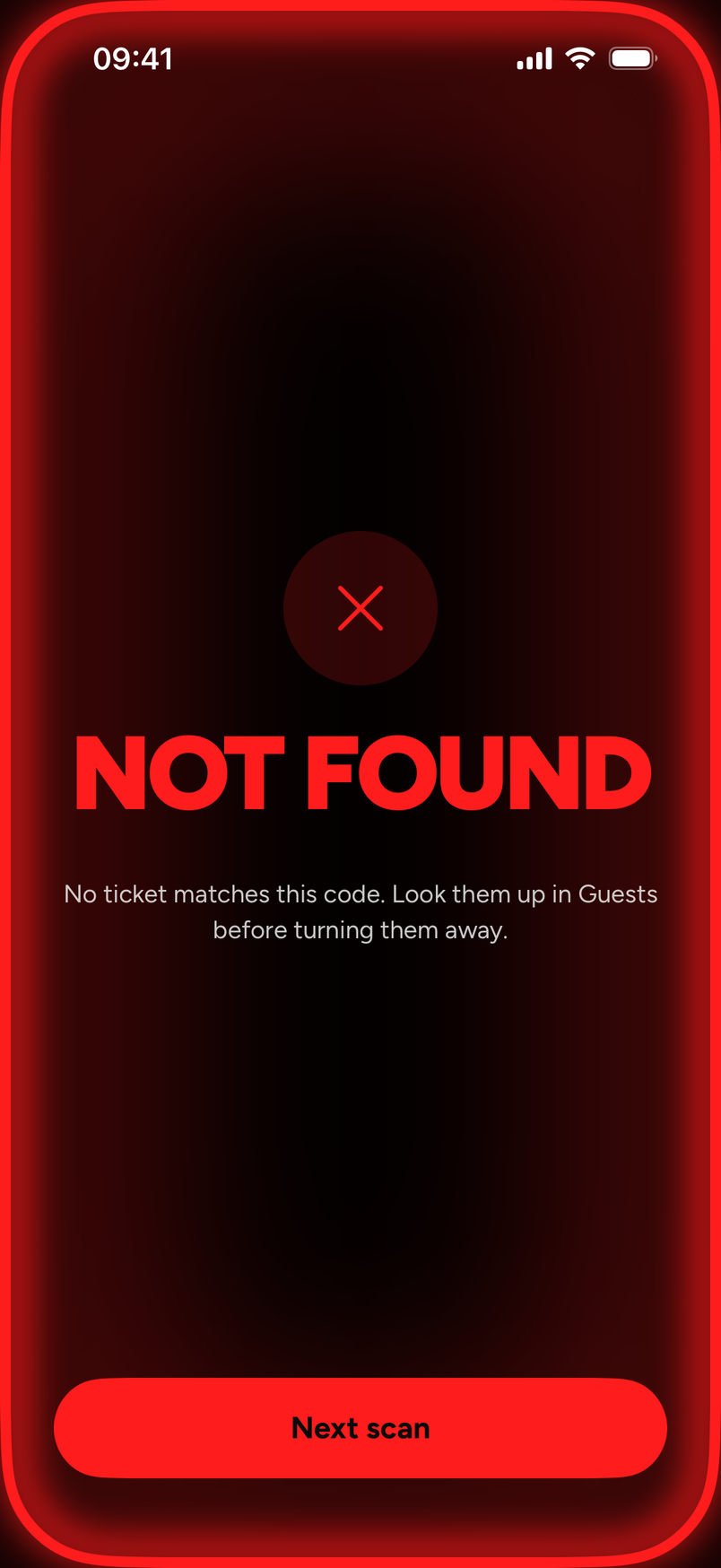
ALREADY IN and NOT FOUND both carry a Next scan button to get ready for the next person.
Door staff see only part of each buyer's email.
Naming each phone
Under Phones at the door there is a Door name for each phone. The choices are Door A, Door B, Door C and Back room. The name shows on the scan, like "Door A" on the ALREADY IN result above.
Door settings
Each phone has its own Door settings. They're saved on that phone only, so each door can set its own.
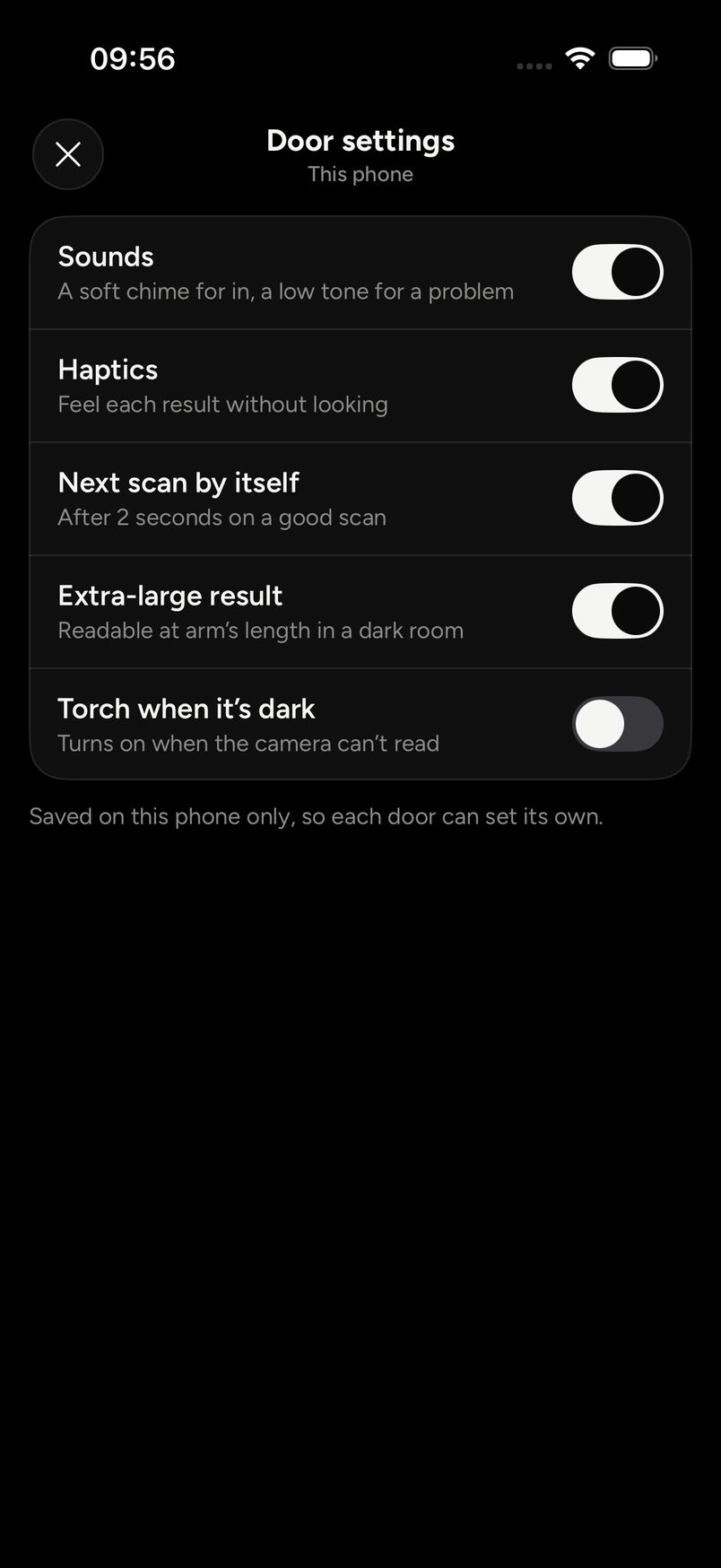
| Setting | What it does |
|---|---|
| Sounds | A soft chime for in, a low tone for a problem |
| Haptics | Feel each result without looking |
| Next scan by itself | Gets ready for the next scan after 2 seconds on a good scan |
| Extra-large result | Makes the result readable at arm's length in a dark room |
| Torch when it's dark | Turns the light on when the camera can't read the code |
When the QR won't scan
The app can't check someone in by hand. Check-in in the app is by scan only, and the guest list is for looking people up, not for checking them in.
Checked in the wrong person? Tap Undo in the 5 seconds after a good scan. See Undo a check-in.
- Ask the fan to open the ticket from their email, or turn their screen brightness up, and scan again. See My QR code won't scan.
- The web door has a Type a code instead option for the text code in a ticket email. See Scan tickets with the app or the web door.
Scanning with no signal
Open the scanner for the night while you still have a signal.
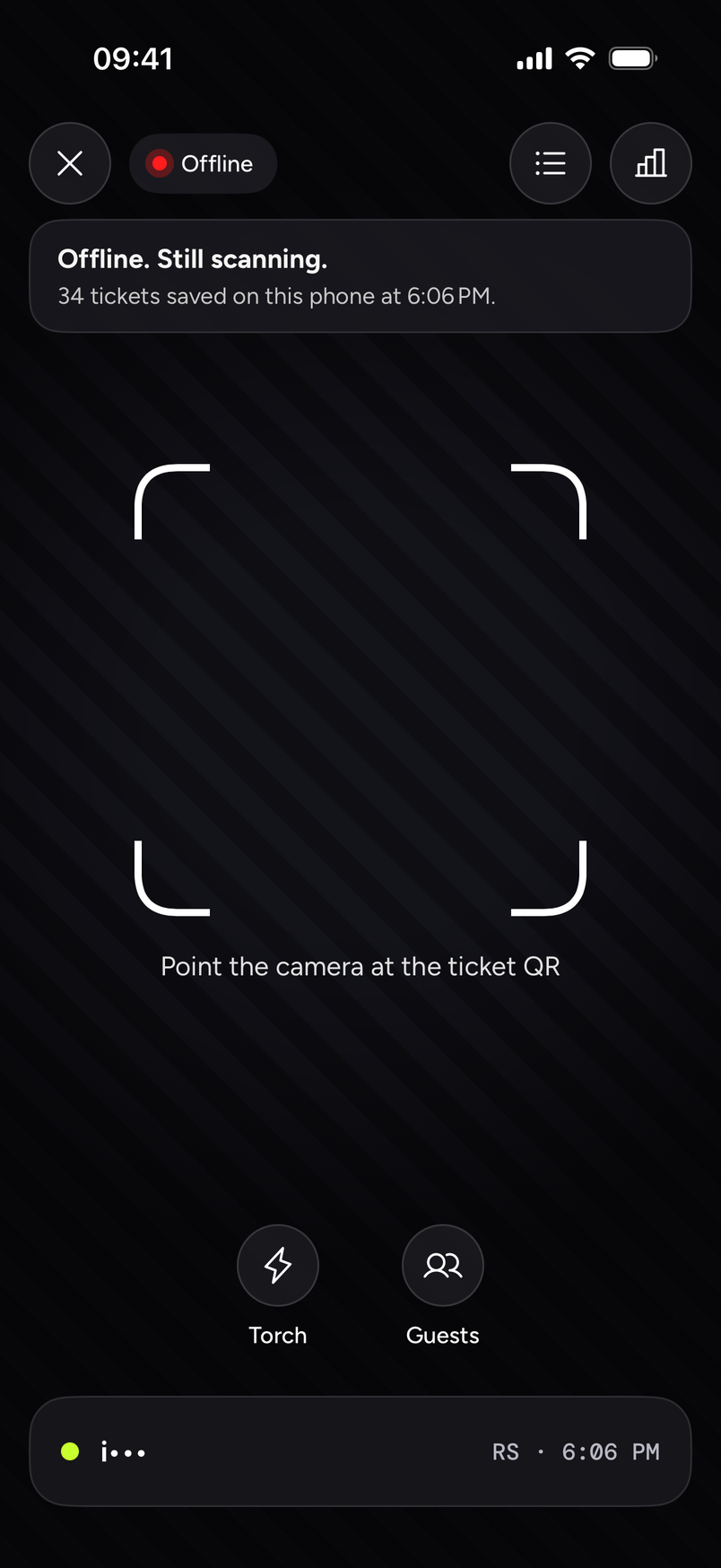
- Offline, the tag at the top says Offline and a banner says "Offline. Still scanning." The line under it reads "N tickets saved on this phone at" and a time, with the number in place of N.
- A ticket on the saved list gets the IN band with the line "Checked against this phone's list. Syncs when you're online."
- The scan is saved on the phone and sent when the signal is back.
- NOT ON LIST means the ticket isn't on the list this phone saved. Check them once you have a signal.
- You may also see PAUSED. Read the line under it, and ask the owner if it isn't clear.